If you were looking for one of the most popular platforms for building a website from scratch, you’ve found it with Wix.
Wix has quickly gained a reputation for being extremely beginner-friendly, flexible and easy to use. If you’re a small business owner or a growing artist, Wix offers several hundred attractive, professionally designed templates that can be customized to fit your unique brand.
Similar to Squarespace and WordPress.com, Wix is an “all-in-one” website-building platform. That means it does all the heavy lifting from a content hosting, design and coding perspective.
All you need to do is pick a template, add your content and customize the overall look and feel to your heart’s content. Of course, you do sacrifice some freedom when it comes to designing a website from the ground up, but Wix allows you to get online with a professional-looking site in a matter of minutes.
Here’s a step-by-step guide to building a Wix website from scratch.
Phase 1: setup
Connect your custom .CA domain first!
Before starting your Wix website build, there’s a critical first step that can’t be missed: registering your custom .CA domain.
Why now? Because if you have an awesome domain name in mind, it’s always better to secure it rather than leave things to chance—and risk potential heartbreak if you wait!
Why register a .CA? For starters—if you’re a Canada-based business, .CA is the only domain that shows you’re Canadian.
It’s also the most trusted domain among your fellow Canucks with around 86% of them preferring to visit .CA websites versus .com when shopping with and supporting Canadian businesses.
Yes, Wix provides free Wix-branded URLs, which look something like this: yourexamplesite.wixsite.com/yoursiteaddress. But that’s a bit of a word salad, if we’re being honest.
Beyond the Canada cachet a .CA provides, having a memorable custom domain for your website can help your business look professional and reputable—which all goes towards building trust with customers.
So again, before you poke at a single design template, register your .CA domain today and connect it to your Wix website in just a few simple steps!
A .CA domain declares your business is proudly Canadian
Create your Wix account
First, head over to Wix.com and click Get Started. Sounds easy enough, right?
From there, you’ll be prompted to create an account using your email address, Google account, Facebook account or Ap.
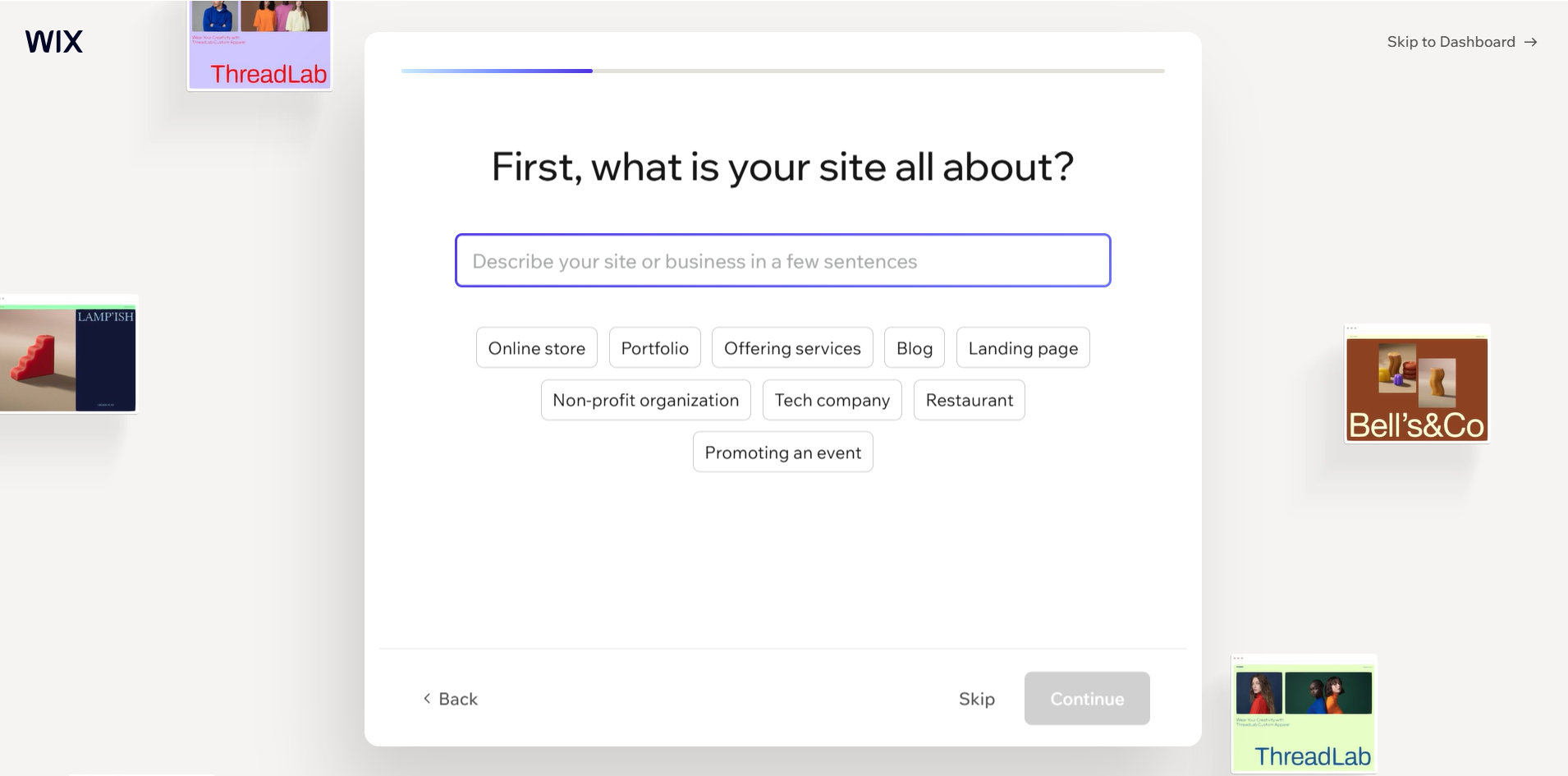
Once you’re signed in, Wix will ask a few basic questions about the type of website you’d like to create. Whether you’re launching a small business website, online portfolio, blog or e-commerce store, your answers will help Wix recommend the best templates and tools for your needs.
After completing a short onboarding process, you’ll arrive at your Wix dashboard—your central hub for managing everything from design and content to domains and analytics.
Wix ADI vs Editor
Before you start building, Wix will ask how you’d like to create your website. And that can be done in one of two ways: using Wix ADI (Artificial Design Intelligence) or the Wix Editor.
Wix ADI is definitely your fastest option. After answering a handful of questions about your business, goals and design preferences, Wix’s AI-powered builder automatically generates a website tailored to your needs.
It can even pull information from your social media profiles or existing online presence to help populate your site. This option is ideal if you’re short on time or simply want a professional-looking website up and running as quickly as possible.
Wix Editor, on the other hand, gives you more control over your site’s appearance and layout.
Using a drag-and-drop interface, you can customize virtually every aspect of your design, from page structure and imagery to colours, fonts and interactive elements.
While it requires a bit more hands-on work, the Editor is often the better choice for businesses that want a more personalized look and feel.
Not sure which route to choose? Don’t sweat it. You can always start with ADI and continue customizing your site afterward using Wix’s editing tools.
Phase 2: design
Template selection
Get rolling by clicking ‘Create a New Site’ from the drop-down menu in the top-right corner of your Wix dashboard.
After clicking, Wix will ask what type of website you’d like to create. Say, for example, you pick Restaurants & Food. You’ll then be taken to a collection of templates designed specifically for restaurants, cafés and food-related businesses.
If none of the suggested designs fit what you’re looking for, you can browse Wix’s template library or use the search function to find additional options.

Just remember: once you choose a template and begin building, switching to a completely different template isn’t always a straightforward process. So, it’s worth taking a little extra time upfront to make sure you’ve found a design you’re comfortable committing to.
When evaluating templates, focus less on colours and images—which can be easily changed later on—and more on the overall layout and functionality. Pay special attention to the type of content you’ll be publishing and the actions you want your visitors to take.
For example, a service-based business may benefit from a template that prominently features contact forms and appointment-booking tools, while an online kitchen gadget retailer should prioritize product galleries and e-commerce functionality.
It’s also a good idea to preview templates on both desktop and mobile devices before making your final selection.
With most website traffic now coming from smartphones, choosing a mobile-friendly design from the outset can save considerable time later.
As tempting as it may be to select a flashy design loaded with animations and visual effects, simplicity often wins! Clean layouts, intuitive navigation and clear calls-to-action typically create a better experience for visitors and make your content easier to consume.

Branding
Once you’ve selected a template, it’s time to make it your own and start shaping the content people will actually see.
Every page on your website should work together to communicate your brand message and guide users toward a specific, clear action, whether that’s contacting you, booking a consultation, making a purchase or signing up for a newsletter.
Start with a strong header, which typically includes your logo, navigation menu and contact information.
From there, create a compelling hero section at the top of your homepage that clearly explains who you are, what you offer and why visitors should care.
Below the hero section, use content blocks to tell your story, highlight products or services, showcase testimonials and answer common questions. Keep your information organized into logical sections so visitors can quickly find what they’re looking for.
Finally, don’t overlook your footer. This area often includes contact information, social media links, business hours, legal pages and additional navigation links.
While it may seem like a minor detail, a well-designed footer can help visitors stay engaged and access important information on your site with ease.
Phase 3: build
Pages to include
There’s no magical number of pages to include, as what you’ll need depends on your goals. That said, most websites benefit from a few core pages. For example:
- Home page: introduce your brand and clearly communicate what you offer.
- About page: share your story, mission and what sets you apart.
- Products or services page: showcase what you sell or provide.
- Contact page: include a contact form, email address, phone number and business location, if needed.
- FAQ page: answer your most common customer questions before they’re asked.
- Blog or resources page: create helpful content to improve SEO and build credibility. These can be “how-to” resources, recipes, thought pieces—and more!
If you’re using Wix for your small business, consider adding testimonials or reviews declaring your awesomeness to help build trust and credibility with customers.
Content tips
A beautiful website can grab attention, but great content is what keeps visitors engaged.
When writing website copy, your focus should be on clarity, not cleverness. Visitors should immediately understand who you are, what you do and how you can help them.
Avoid dense industry jargon wherever humanly possible. Write as though you’re having a face-to-face conversation with a customer.
Some more quick content tips:
- Write content that’s interesting to your audience, not search engines.
- Use high-quality images that reflect your brand.
- Break up large blocks of text with headings and visuals.
- Clearly explain the benefits of your products or services.
- Include calls-to-action such as “Contact Us,” “Book Now” or “Get a Quote.”
Remember, website visitors often decide within seconds (10-20 seconds, actually) whether they’ll stay on a page. So make those precious first impressions count!
Consistency also matters. Use a similar tone of voice across every page and ensure your messaging reflects your brand personality. Whether you’re aiming for professional, approachable or creative, maintaining a consistent voice helps build trust and recognition over time.
Last point: include clear calls-to-action throughout your site. Don’t leave your visitors wandering around, wondering what to do next. Tell them whether you’d like them to contact you, request a quote, book a service or make a purchase.
Phase 4: launch
Wix pricing and plans explained
In general, Wix’s pricing and plans can be broken down into four tiers:
- Light: this tier is best for personal websites, portfolios and simple informational sites. This will set you back $21 CAD per month.
- Core: ideal for small businesses that want to accept payments, take bookings or sell products online. Core can be had for around $33 CAD per month.
- Business: this tier is designed for growing businesses that need more robust e-commerce, branding and marketing capabilities. Get yours for $44 CAD per month!
- Business Elite: this top-end tier is built for larger organizations and high-volume online stores that require advanced analytics, collaboration tools and enhanced support. It’ll cost you $165 per month.
All paid plans include web hosting, security features and the ability to connect a custom domain, making it easy to scale your website as your needs evolve.
Note: Wix also has a “free” plan that gives you access to its drag-and-drop editor, web hosting and templates. But it comes without any of the functionality and features from the paid tiers.
Pros & cons of Wix
Pros
- Beginner-friendly drag-and-drop editor.
- Hundreds of professionally designed templates.
- Hosting and security included.
- No coding experience required.
- Built-in SEO, marketing and e-commerce tools.
- Fast setup for personal sites and small businesses.
Cons
- Limited flexibility compared to fully self-hosted platforms.
- Switching templates after launch can be difficult.
- Advanced customization options are more limited than WordPress.
- Some premium features require more expensive, higher-tier plans.
Wix vs WordPress: which is better?
The Wix vs WordPress debate often comes down to simplicity versus flexibility.
Wix is ideal for beginners who want an all-in-one solution with minimal technical setup. Hosting, security updates and maintenance are handled for you. Think of it like living in a snazzy modern condo development.
WordPress offers greater customization and scalability, but typically requires more hands-on management, including hosting, plugins and ongoing updates. In other words, more of an eccentric DIY house that your father-in-law is helping you remodel.
The bottom line? If you’re trying to get online quickly with minimal technical knowledge, Wix is often the easier choice.
But if you need complete control over every aspect of your website, WordPress may be worth the extra learning curve.
Optimize your Wix site
Wix includes several built-in SEO tools that can help improve your visibility in search engines.
Start by:
- Writing unique page titles and meta descriptions.
- Using descriptive heading tags.
- Adding alt text to images.
- Including relevant keywords naturally throughout your content.
- Submitting your sitemap to Google Search Console.
Wix’s SEO Setup Checklist can also guide beginners through many of the most important optimization tasks.
Mobile optimization
More than half of website traffic now comes from mobile devices, so it’s essential to review your site on smartphones and tablets before launch.
Wix automatically creates a mobile-friendly version of your website, but you should still check page layouts, image sizes, button placement and navigation menus to ensure everything displays (and scales) correctly.
Performance
Website speed can have a big impact on both user experience and search rankings. To keep your Wix website running smoothly:
- Compress large images before uploading.
- Limit unnecessary animations.
- Remove any unused apps and plugins.
- Regularly review site performance using analytics tools.
Remember: a snappier, faster website improves engagement, conversions and overall search visibility. Now, if only we could say the same about public transit in Canada…
Common Wix building mistakes to avoid
1. Choosing the wrong template from the start
Because Wix doesn’t allow you to easily switch templates after you’ve started building, take time to choose one that aligns with your future needs. Think beyond launch day and consider how your content may grow over time.
2. Ignoring mobile-first design
A website that looks great on desktop but performs poorly on mobile can annoy visitors and hurt your conversions. Always take the time to preview and test your site on multiple screen sizes before publishing.
3. Not connecting your domain early
Waiting until the last minute to connect your domain can create unnecessary delays. It’s best to buy a .CA domain early and connect it during the build process so everything is set to launch.
4. Skipping SEO setup
It’s easy to ignore SEO and focus entirely on making your website look pretty. But if people can’t find your site, then what? Completing a basic SEO setup before launch can help search engines understand your website and improve your chances of being found online.
Once your Wix website is ready to share with the world, simply click “Publish” in the top-right corner of the screen.
There—that wasn’t so bad, was it? We hope these first steps set you up nicely to build a brilliant Wix website!
A .CA domain declares your business is proudly Canadian
FAQ
Yes. Wix includes built-in SEO tools such as customizable page titles, meta descriptions, image alt text and sitemap generation. When combined with quality content and SEO best practices, your Wix site can perform well in search results.
Absolutely! You can connect a custom domain to your Wix website through a premium plan. But you know…lots of Canadian businesses choose to register a .CA domain to highlight their Canadian presence. *cough* *cough*
Wix offers a free plan, along with four tiers of paid plans. Costs vary depending on the features you need, such as custom domains, e-commerce tools, storage and advanced marketing functionality. Paid premium plans start at around $21 CAD monthly and go up from there.
You betcha. Wix does offer a free plan you can use indefinitely. But the catch is this: the free plan includes Wix branding and uses a Wix subdomain. Most businesses eventually upgrade to a paid plan for a more professional online presence.
Kira is the Content and Channel Marketing Lead at CIRA. She focuses on content, digital marketing and channel strategies to help Canadian business owners make the right domain choice for their business website so they can find success online.